How to build a workflow?
Last updated: November 9, 2026
What is the workflow?
The workflow gathers all the controls you want to perform on each case. Each control, automated or manual, is called a task.
When a new case enters Ondorse, it goes through your workflow: each task runs according to the conditions you have set (entity type, country, risk level…), so every case gets the right level of compliance checks.
You configure it in Settings > Policy > Workflow.
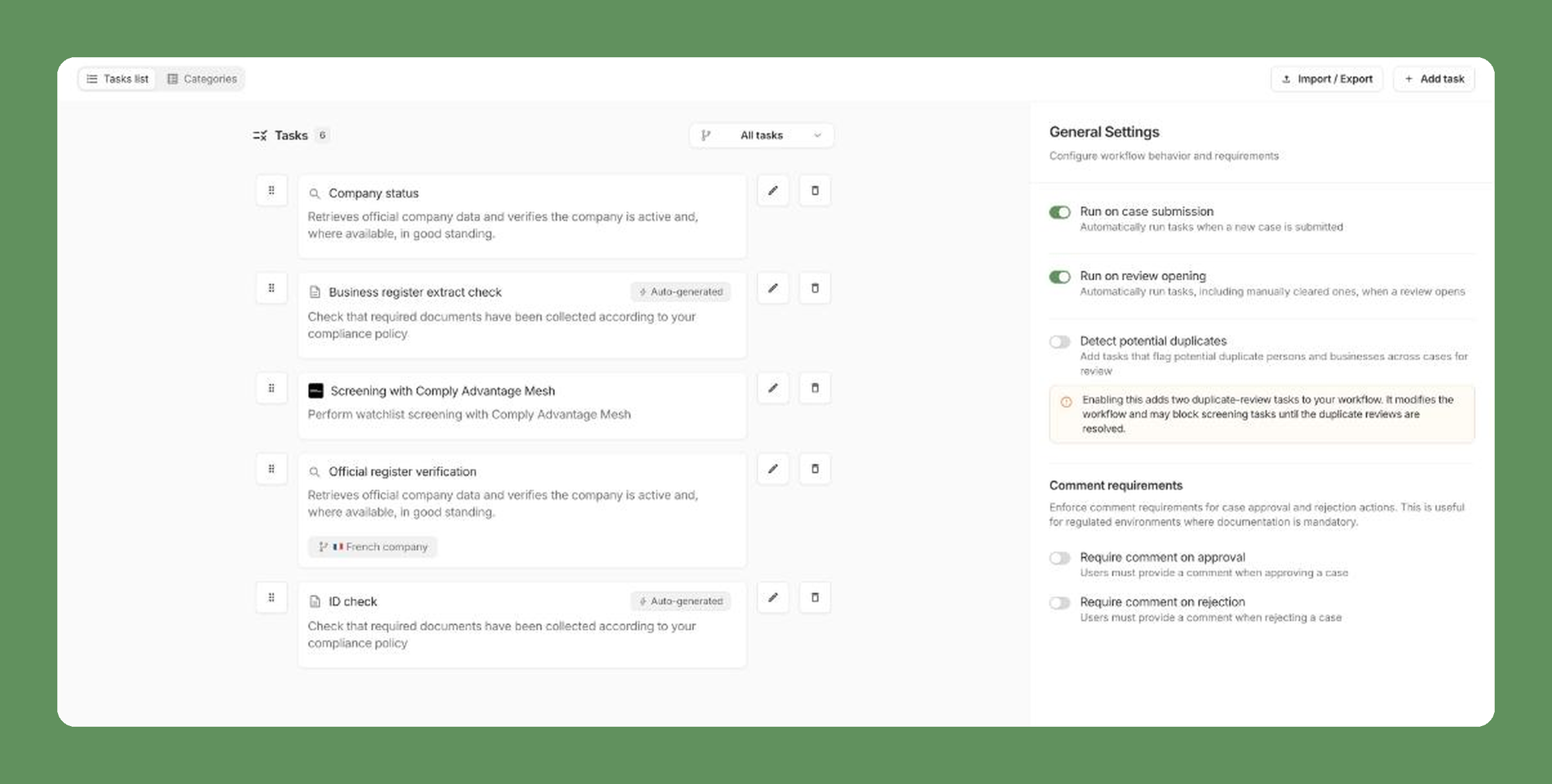
The types of task
Click Add task, then pick a Task category and a Task type.
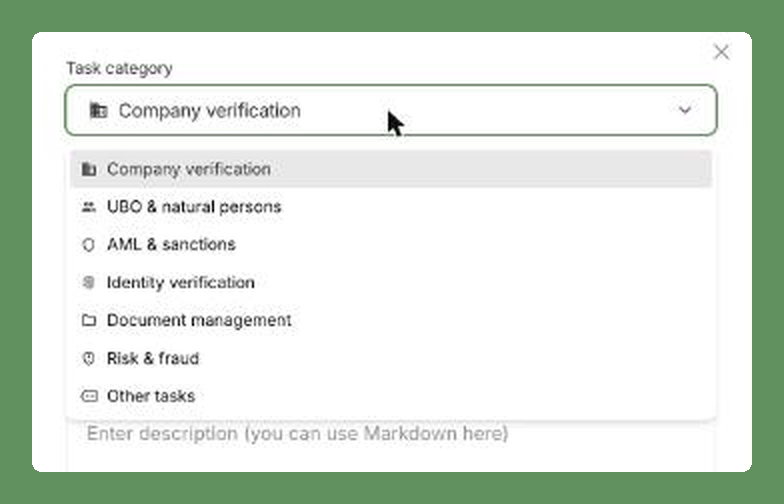
Company verification: gather data on the legal entity you onboard. This is where you choose which data provider supplies corporate data, and where you find tasks such as official register verification, website analysis, VAT or IBAN checks.
UBO & natural persons: identify legal representatives and UBOs from official registers or private sources. These tasks rely on the data sources you set in Company verification.
AML & sanctions: screen the company and its natural persons against watchlists, with the screening provider of your choice.
Identity verification: verify the identity of natural persons with the identity or document verification provider of your choice.
Document management: guide your analysts through document collection and validation, based on your 📄 Expected documents. This category also includes tasks that download documents directly from a registry, and document OCR to automate verification further.
Risk & fraud: tasks dedicated to fraud detection and risk assessment.
Other tasks: including the Manual task, which lets you define any process your analysts must follow when no automated task fits.
For each task, you can rename it (Name to be displayed in the interface), add a description, and set its parameters.
Activation conditions
Ondorse has one workflow per workspace, but it can follow as many different paths as you need. For each task, Activation conditions define which cases it applies to. For example, screen UBOs only for French companies, or download documents only for UK private limited companies.
To add one, open the task, click Add condition, then select an existing condition or create a new one.
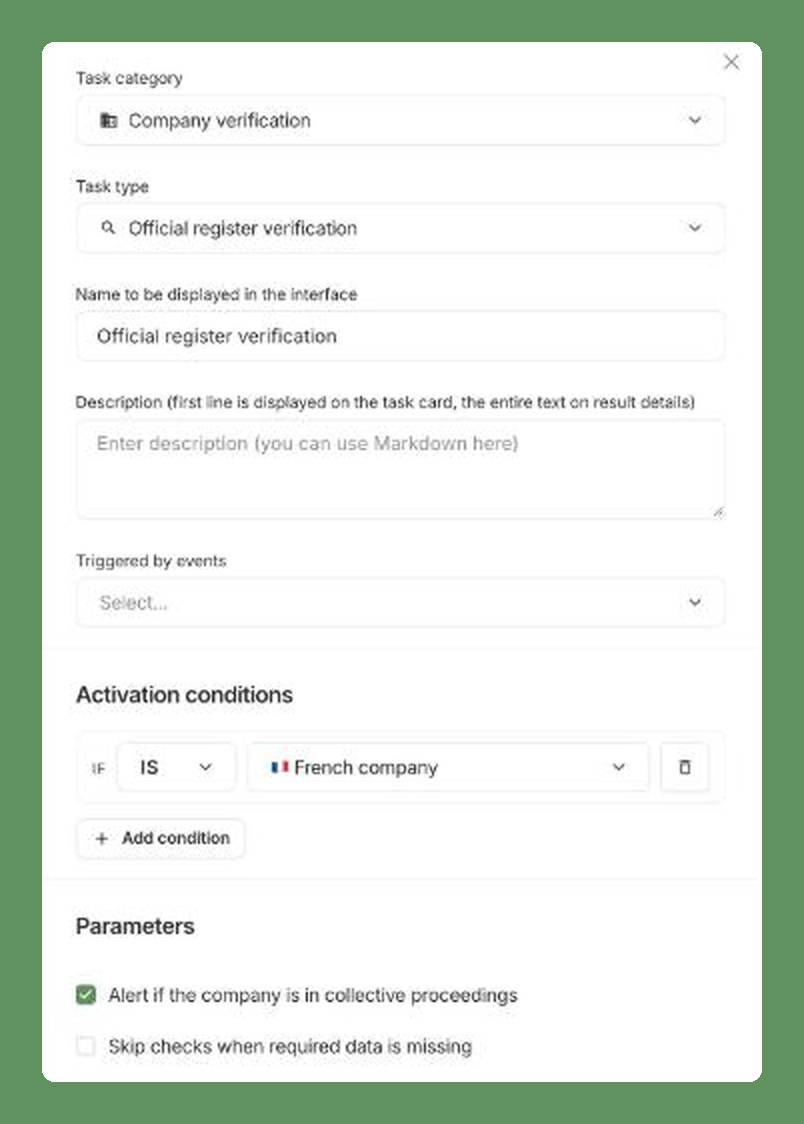
A task without activation conditions applies to every case.
📄 How to use Activation conditions
Run the workflow automatically
In the General Settings panel of the workflow page:
Run on case submission: tasks run automatically every time a case is submitted, from a portal or from the case manager.
Run on review opening: tasks run automatically when a review opens, including tasks that were manually cleared.
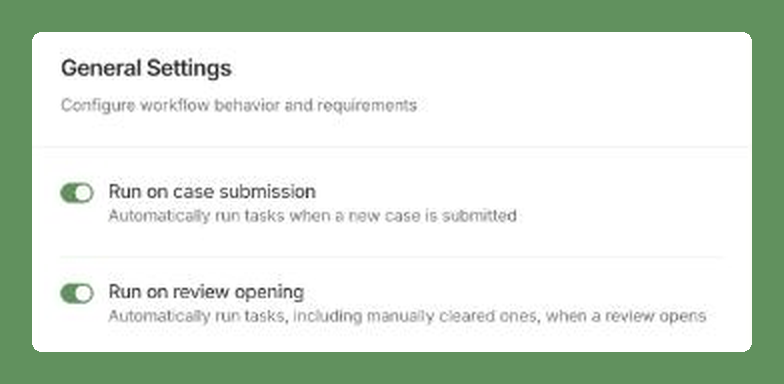
The same panel also lets you switch on Detect potential duplicates, which flags persons and businesses that already appear in your other cases.
📄 How to detect duplicate persons and businesses across cases
Go further
More resources are available here.