How to collect terms and conditions and privacy policy agreements in Portal
Last updated: November 9, 2026
Portal can ask your end users to agree to your terms and conditions and/or your privacy policy before they submit their portal request. Ondorse keeps the proof of agreement in the case.
How it works
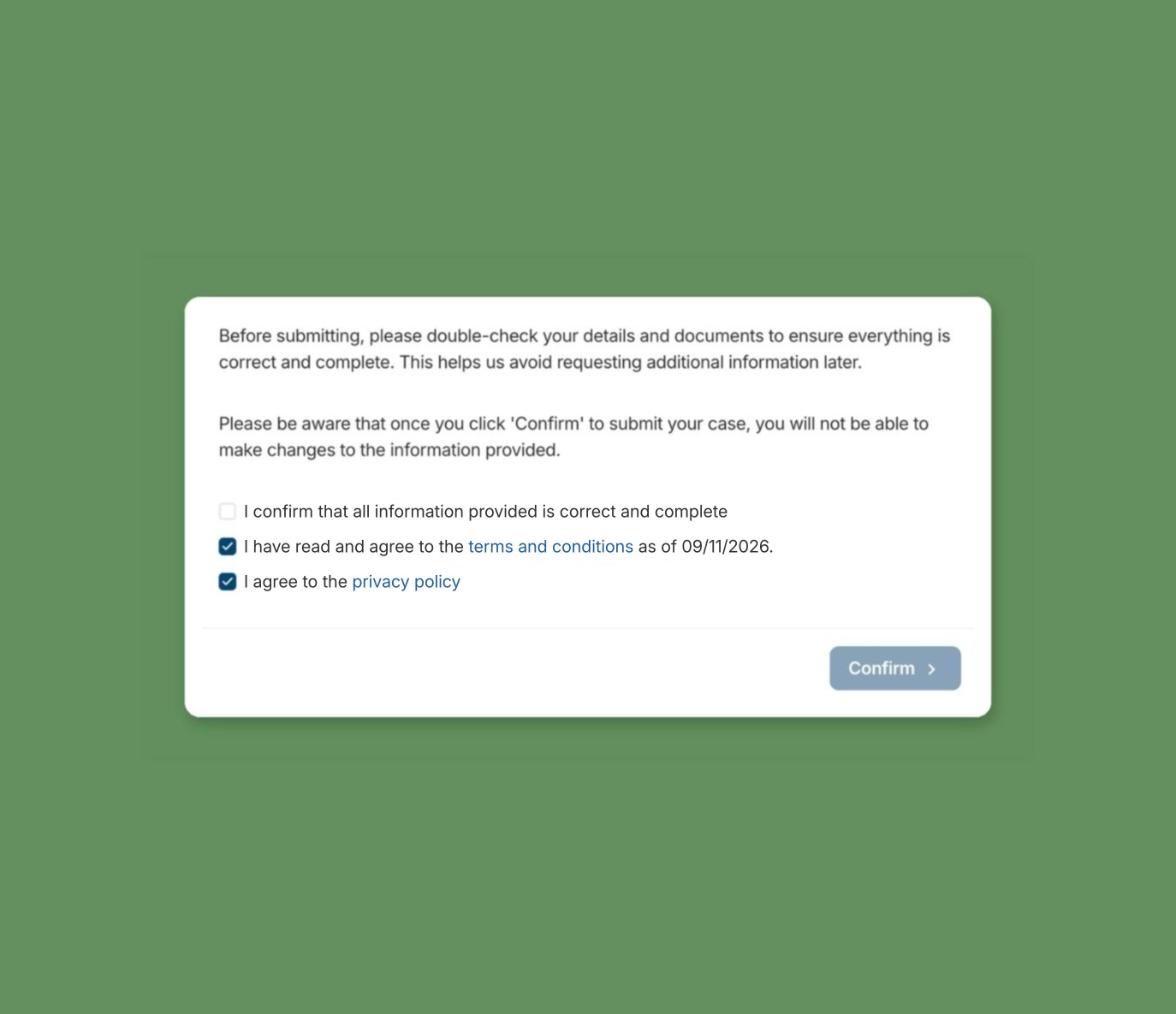
At the end of the portal request, the end user ticks a box to accept each document you set up. They can open the document from the portal before agreeing.
The proof of agreement is stored in the case, in the Agreements section of the Verifications tab. It is also included in case reports (Generate a report).
Terms and conditions and privacy policy are set up separately: you can collect one, the other, or both.
Set up agreements
Go to Settings > Policy > Portals > Options and scroll to the Agreements section.
On the Main account card, click Edit.
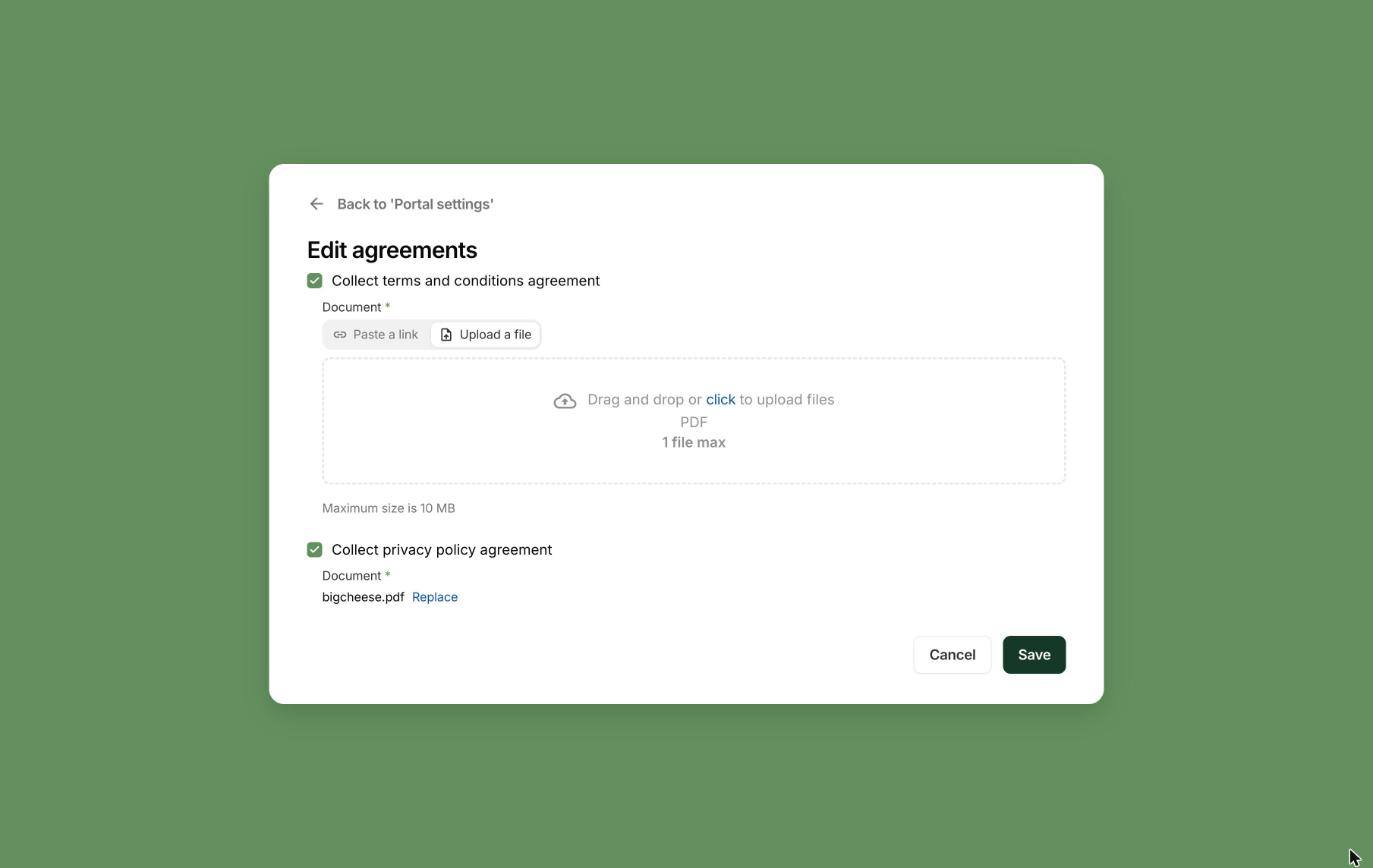
On Edit agreements, tick Collect terms and conditions agreement and/or Collect privacy policy agreement.
For each ticked agreement, add the Document:
Paste a link: the URL of the document on your website (it must start with https://).
Upload a file: a PDF, one file, 10 MB maximum.
Click Save.
The Agreements section then lists each document, or Not enabled for an agreement you don't collect. If you collect none, it shows No agreements are collected yet.
To change a document later, click Edit, then Replace next to the current document.
Use different documents per workspace
Workspace overrides are only available if your plan includes Workspaces. Without it, the Add workspace override button doesn't appear and all your portal requests use the main account's documents.
If your workspaces correspond to different entities (for example a French and a UK entity with different privacy policies), you can set specific documents for a workspace.
In the Agreements section, click Add workspace override.
Select the Workspace.
Tick the agreements to collect for this workspace and add their Document (link or PDF).
Click Save.
Portal requests of that workspace then use its documents. The override appears under Workspace overrides.
To change it, click Edit on the workspace card (Edit workspace agreements).
To remove it, click Delete on the workspace card. The workspace then uses the main account's documents again.
FAQ
Where can I see that an end user agreed to my documents?
Open the case and go to the Verifications tab: the Agreements section shows the proof of agreement. It is also included in the case report.
Should I paste a link or upload a file?
Paste a link if the document is already published on your website and you update it there. Upload a PDF if you want Ondorse to host the exact version your end users agree to.