How to add a message when sending a portal back to your customer
Last updated: November 10, 2026
When you send a portal back to your customer to resubmit information or documents, you can add a message explaining why. Your customer sees it in the portal, instead of a reopened form with no context.
Add a message to a portal request
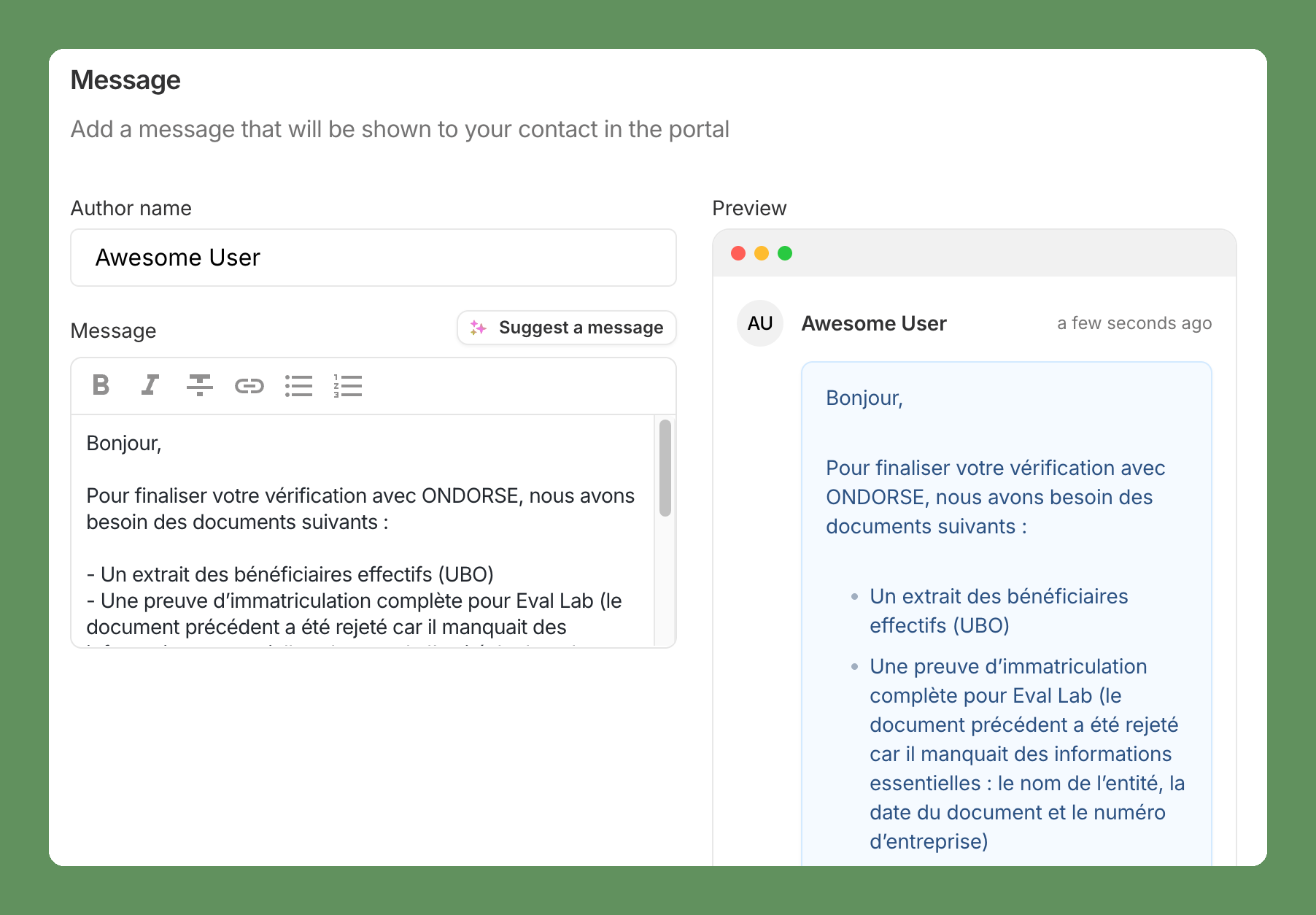
When you send the portal back, go to the Message section.
Enter the Author name your customer will see.
Write your message, or click Suggest a message to get a draft written by AI from what is missing or invalid.
Check the Preview and edit the message if needed, then send.
The message is optional.
Suggest a message (AI drafting) is not necessarily included in your plan. Writing a message yourself is always possible.
Add a message when you invalidate a document
When you set a document as Invalid, you can also write a Message to the applicant. It is shown in the portal next to the reason, when they upload the document again.
If AI document checks are enabled on this document, the message may already be suggested. Check it before you confirm.