Queuing logic
Last updated: June 22, 2026
Queues give your operations teams a clear, real-time view of which cases need to be worked on next — organised by who is responsible for them.
How it works
Your account will come with two inbuilt queues, you and customer. These are directly tied to the waiting on status on a case. See📄 How to read the 'Waiting on' status.
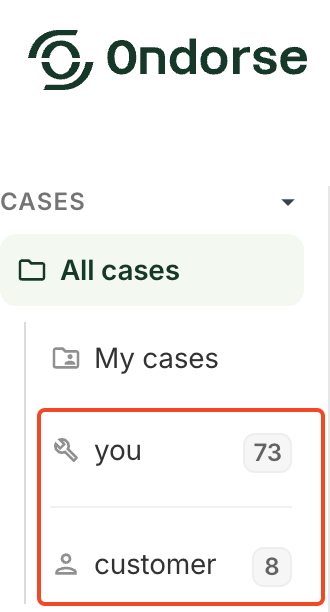
Whenever you add a new custom actor that you can be waiting on, this will automatically generate a dedicated queue in the left navigation panel.
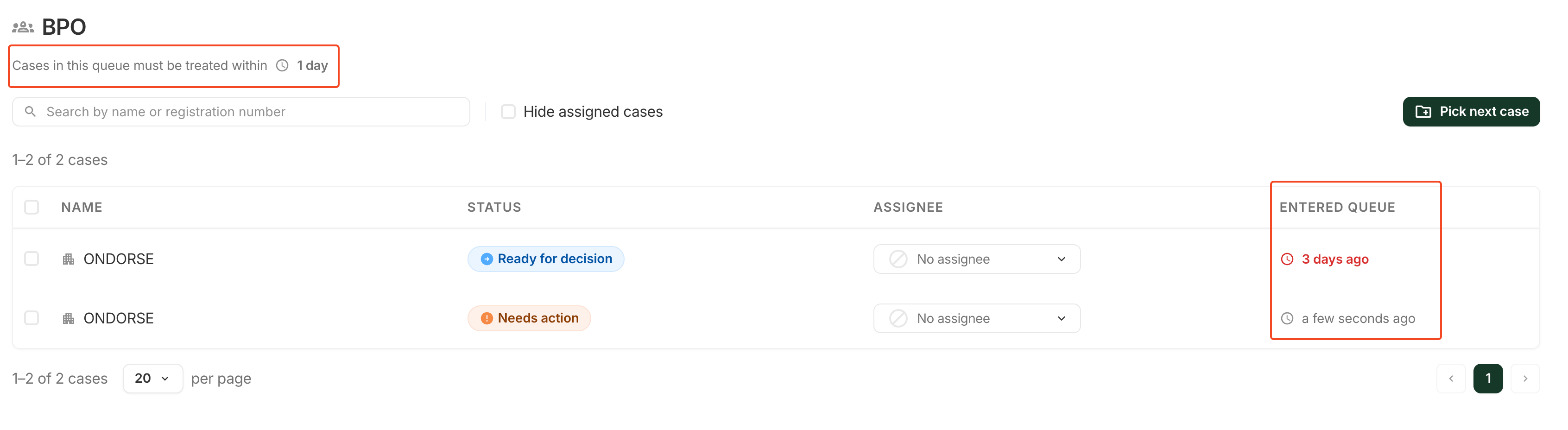
Cases appear in each queue sorted by how long they have been waiting - oldest first - so agents always know what to prioritise. Cases breaching SLAs you have defined for this queue will be highlighted
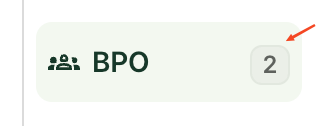
Each queue entry in the navigation shows a live count of cases currently assigned to that actor.
What you can do from a queue
Pick up the next case Click Pick next case to claim the oldest unassigned case in the queue. The case is assigned to you immediately.
Toggle between all and unassigned cases By default, queues show unassigned cases only. Use the toggle to switch to all cases in the queue, including those already assigned to a specific agent.
Assign a case manually You can assign a case to yourself or to a colleague directly from the queue table.
Escalate a case To escalate, change the actor on the case to the appropriate team. The case moves out of the current queue and into the target actor's queue.
The "Assigned to me" view
In addition to actor queues, the Assigned to me view shows all cases currently assigned to you, regardless of which actor they are on. This is your personal worklist.
Queue ordering
Cases are ordered by time of entry into the actor queue — the case that has been waiting the longest appears first. This order cannot be changed manually.
Prerequisites
By default, every account comes with two actors: You and Customer. Additional actors can be configured by your Ondorse administrator.